¶ How to Add the Geolocation Button
If your Shopify theme supports app blocks (any public theme version after March 2023), you can add the Geolocation Button directly to your header, footer, or any other section.
Follow these steps:
- Go to your Shopify Admin Panel.
- Navigate to Online Store > Themes.
- Click Customize next to your current theme.
- In the Theme Editor, click “Add section” from the left sidebar.
- Go to the “Apps” tab.
- Click the Geolocation Button app block.
- Add it to your desired section (e.g., header or footer).
- Click Save to apply the changes.
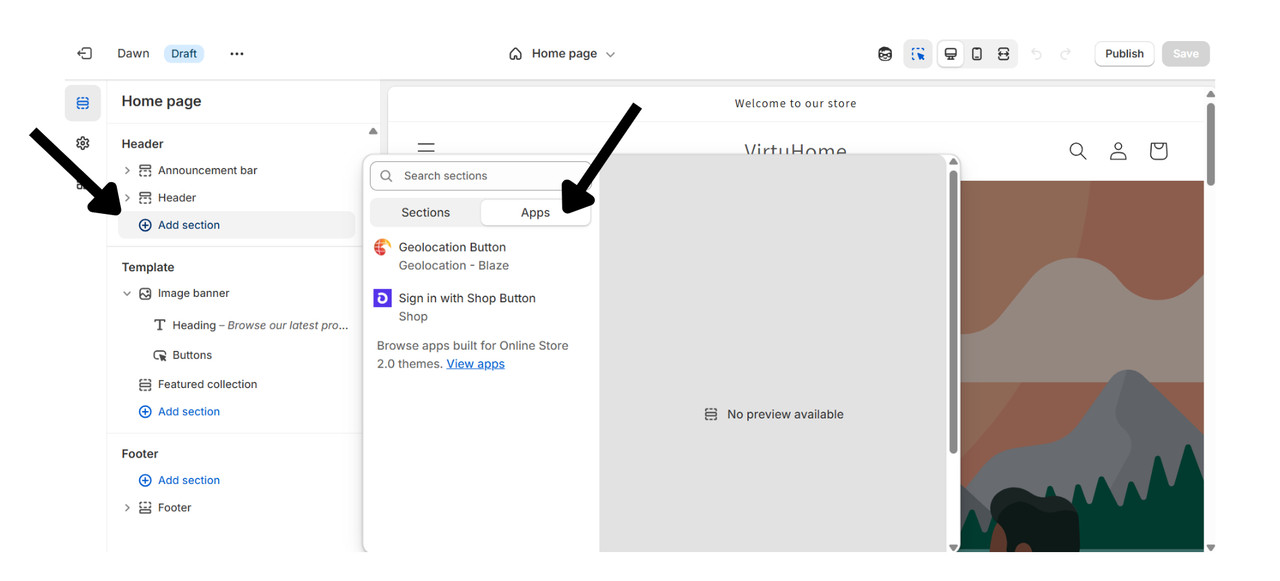
Note: If your theme is older or does not support app blocks, you may need to use a custom code method to place the button.
¶ How to Add the Geolocation Button via Custom Code:
If your Shopify theme doesn’t support app blocks directly, you can add the Geolocation Button using the custom code method. Follow these steps:
1. Edit Your Theme: Go to Online Store > Themes > Edit code in your Shopify admin.
2. Check or Create the Apps Section: Open the sections folder and look for a file called apps.liquid.If it doesn’t exist, create a new file named apps.liquid and insert the following code:
{% schema %}
{
"name": "Apps",
"tag": "section",
"blocks": [
{
"type": "@app"
}
],
"presets": [
{
"name": "Apps"
}
]
}
3. Create the App Group File: Add a new file to the sections folder called app-group.json and paste this code:
{
"type": "aside",
"name": "Apps",
"sections": {
"main": {
"type": "apps",
"settings": {
}
}
},
"order": [
"main"
]
}
- Edit theme.liquid. Go the theme.liquid file and insert this after closing the tag or after the section header / section footer.
5. Customize in Theme Editor: Go to Theme Editor > Customize, and you’ll now see a new section called Apps. Here you can add your installed app blocks, including the Geolocation Button.
¶ How to Set Up the Geolocation Button
The Geolocation Button can trigger either:
- Geolocation Popup
- Market Selector Modal
¶ To make sure it works correctly:
- If you choose Geolocation Popup, enable the Geolocation Popup app embed.
- If you choose Market Selector Modal, enable the Market Selector app embed with the Modal option selected.
Without enabling the correct app embed, the button may not function as intended.
¶ Shopify App store Link
Shopify App Store
¶ Always here for you
For any assistance with enabling or customizing the geolocation popup, please do not hesitate to contact us. Our team is ready to help and can even customize the popup for you to ensure it perfectly meets your needs.
Email us at support@blazeappsoncloud.com for any help required. We are here to support you in making the most out of the Blaze Geolocation Redirect app.