¶ How to Duplicate a Popup and Assign a Market in Geolocation Redirect Blaze
¶ Introduction
Duplicating a popup allows you to create a similar popup without rebuilding it from scratch. After duplication, you can assign it to specific markets based on your needs. This guide will walk you through the steps to duplicate a popup and assign it to the correct markets.
¶ Step 1: Access the Popup Editor
- Log in to your Shopify Admin Panel.
- Navigate to Apps and select Geolocation Redirect Blaze.
- Go to the Popups section.
- Find the popup you want to duplicate.
¶ Step 2: Duplicate the Popup
- Click the Duplicate button next to the popup.
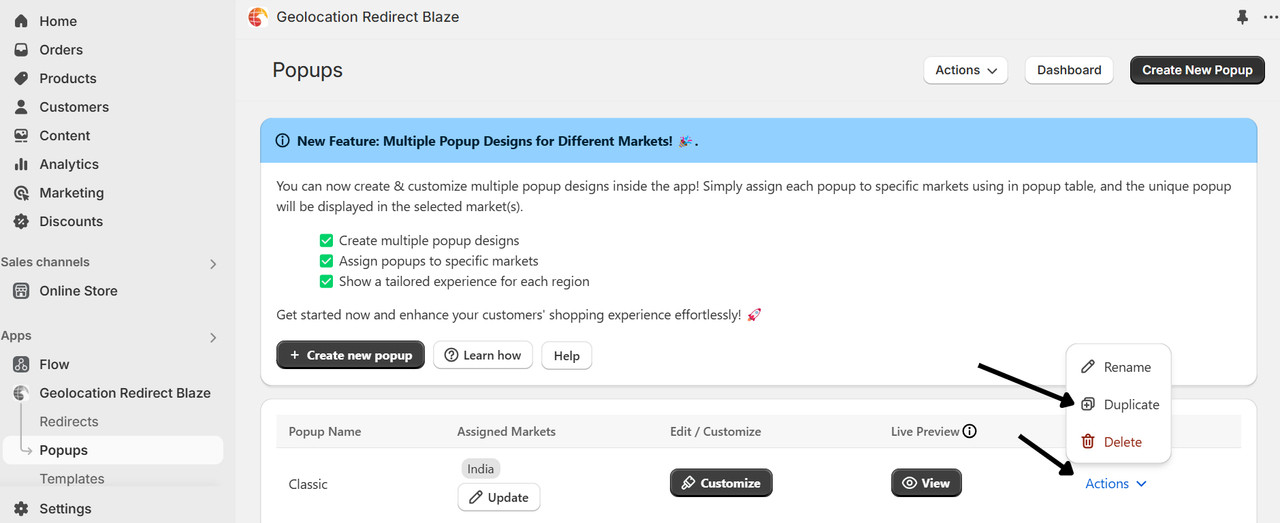
- A copy of the popup will be created with the same design and settings.
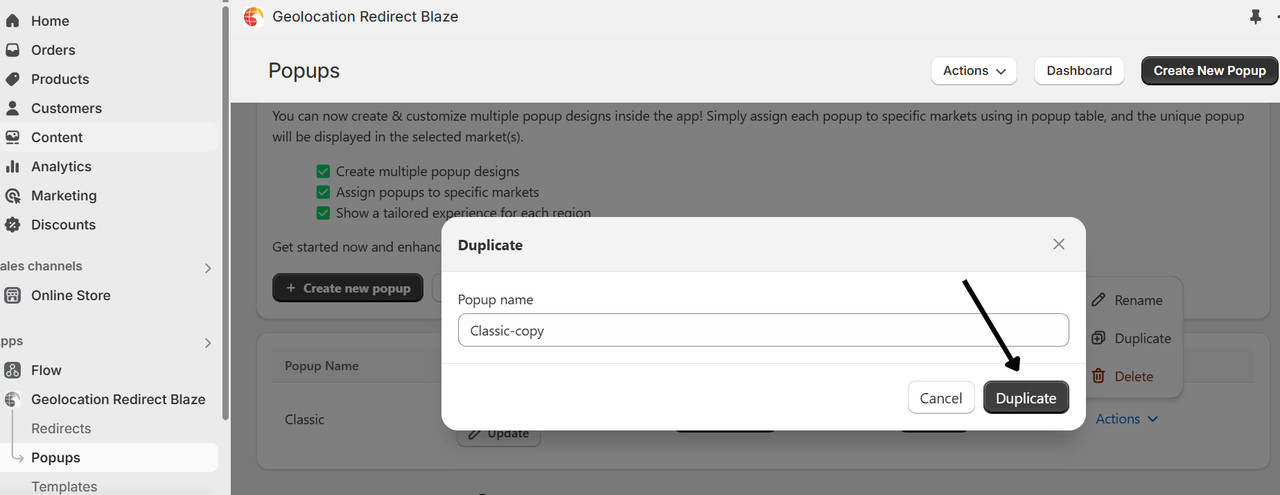
- Rename the duplicated popup for better identification.
- Click Save to confirm the duplication.
¶ Step 3: Assign the Duplicated Popup to a Market
- Open the duplicated popup in the Popup Editor.
- Scroll to the Assign Market section within the popup settings.
- Click Assign Market and select the markets where this popup should appear.
- You can assign the popup based on:
- Visitor's GeoIP location (Automatically detects location)
- Browser Language (Displays based on visitor’s language settings)
- UTM Parameters (For tracking specific marketing campaigns)
- Click Save Assignment to confirm.
This Popup will display when a customer visits your store from the selected market countries.
¶ Step 4: Activate the Popup
- Navigate to the Popup Management section.
- Locate the duplicated popup and toggle the Activate switch.
- Test the popup by visiting your store using a VPN or changing your browser’s region settings.
¶ Shopify App store Link
GET IT ON
Shopify App Store
Shopify App Store
¶ Always here for you
For any assistance with enabling or customizing the geolocation popup, please do not hesitate to contact us. Our team is ready to help and can even customize the popup for you to ensure it perfectly meets your needs.
Email us at support@blazeappsoncloud.com for any help required. We are here to support you in making the most out of the Blaze Geolocation Redirect app.